D&R Broadcast Mixing Consoles
D&R Broadcast Mixing Consoles

since 1972

WERKEN BIJ

WEBSHOP

AXUM


Software

FAQ's

Manuals

Support
Software
Welcome to the software downloads hub of the AXUM, your one-stop destination for all the essential tools to keep your AXUM performing at its best.
Whether you're setting up a new AXUM or simply staying up to date, we've made it easy to find and download the latest versions of all available software you can use.
Users that have higher capacity Compact flash cards can experience error messages when trying to download the backup. Don't click away the error message, browse to the download directory and rename
the partial file to .raw.
Needed software (Install as Administrator):
More software
Looking to get more out of your device?
In this section, you'll find a collection of compatible software that enhances functionality.
AXUM Firewire driver (v4.1.4)
Provides the necessary drivers to ensure stable and reliable communication between Axum Firewire, enabled hardware and your computer.
AES67/USB card Windows driver (unsigned)
Contains the required Windows driver files for operating an AES67/USB interface card.
AES67/USB card Windows driver (signed)
Provides a digitally signed Windows driver for the AES67/USB interface card, ensuring secure and straightforward installation without requiring changes to Windows security settings.
GParted USB stick image
For compact flash card puposes
Active Partition Manager
For compact flash card purposes
Dubaron Diskimage
For compact flash card purposes
Manuals
Looking for guidance on how to use your AXUM? You’ve come to the right place!
In this section, you’ll find all kinds of manuals to help you get started, troubleshoot, and make the most of the AXUM. Whether you're setting up for the first time or looking for advanced tips, everything you need is just a click away.


Support
Welcome to the support section, your central hub for all product-related help.
Here, you’ll find diagrams, product dimensions as well as instructions on how to send your unit in for service.
Need personal assistance? You can also find details on how to get in touch with our support engineers.
Whatever you need, we're here to help you every step of the way.
Send your device for service
We’re sorry to hear you’re having trouble with your D&R device, we’re here to help!
To make the repair process as smooth and fast as possible, please follow the steps below.
1. Packing
Make sure your device is clean and packed securely. If you still have the original packaging, please use it.
Otherwise, use a sturdy box and fill the empty spaces with newspaper or foam to prevent damage during shipping.
2. Inform D&R
Always inform our support in front of the transport with the next important information:
-
Your return address
-
Contact name
-
Phone number
-
Email address
-
Serial number of the device
-
Short explanation of the issue(s)
This can be done by filling in the support form on our website.
3. Shipping
We recommend that you always send your device with Track & Trace.
This way, both you and D&R can follow the package and ensure it arrives safely.
Shipping from within Europe:
If you're located in Europe, you can arrange the shipment yourself.
However, if you prefer, D&R can also handle the shipping for you.
Having us handle the process helps avoid delays and extra costs.
Shipping from outside Europe:
If you're outside Europe, we strongly advise that D&R arranges the shipping.
International shipments require specific export documents and must follow different customs regulations.
Having us handle the process helps avoid delays and extra costs.
We’ll arrange the FedEx pick-up and send you a shipping label and invoice by email.
Just print them and attach them clearly on the box.
The FedEx driver will pick up the package at the time and date you choose.
They’ll also take care of all shipping documents.
Please note:
If D&R arranges the pick-up, shipping costs will apply.
These costs vary depending on your location and will be added to your final invoice before your repaired device is returned.
4. Arrival
Once your device arrives at our facility, you will receive a confirmation email with a receipt for your records.
This email will include all important details about the shipment, the device, and its condition upon arrival.
Our technicians will then begin the inspection and service process as soon as possible, so we can return your device to you without unnecessary delay.
Delivery address to send your device to:
D&R Electronica B.V.
Rijnkade 15-b
NL-1382 GS, Weesp, The Netherlands
Attn.: Support department
Technical documents
Here you can find some internal information about your device.
How to change the icons on your meter display
Here you can find in clear steps how to change the icons on your meter display.
Download here all available icons
Here you can find all the available icons to use inside your metering software
AXITE-AXUM Rack unit version sheet
Here you can find a clear sheet with all the changes and modifications inside the Rack unit
Dante compatibility flowchart
Here you can find in a easy block diagram if your system is ready for Dante
FAQ's
Welcome to the FAQ section for the AXUM. Here, you’ll find answers to the most common questions we receive about this broadcast mixer.
.png)
Control surface

Rack unit

Settings / functions

GPI / GPO
FAQ's - Control surface
Which switch number is linked to which physical switch on the surface?

FAQ's - Rack unit
What to do when the AXUM meters show 99% and the engine?


Is it possible to let your PC work in 2 different network ranges?

Where to replace / insert a card inside the Rack I/O unit?
.jpg)
How can i transfer settings of an old card to a new one?


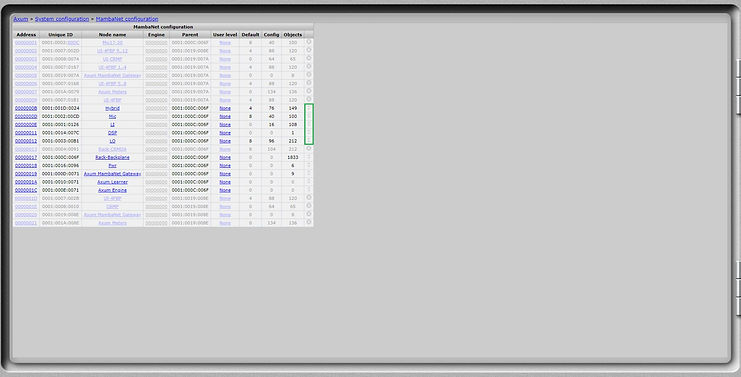
How to add a new AXUM card inside an existing configuration?


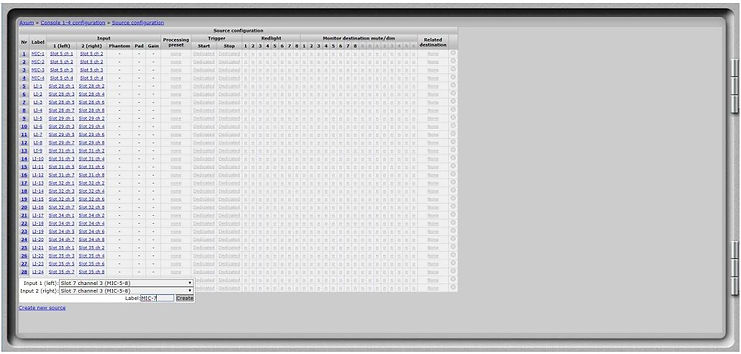


FAQ's - Settings / functions
How can i make a backup and restore a backup on the compact flash card?
_edited.jpg)


How to erase / remove compact flash card partition with GParted?


How to erase / remove compact flash card partition with Active Partition Manager?


How to restore backup with Dubaron DiskImage?


How to extend partation size when you use a higher capacity compact flash card
with GParted?
How do I connect my AXUM system?

I don't want to use long STP cables for my Microphone signal, how can I still use the Cough and Comm functions on my Studio Remote unit?

Do you have instructions how to configure an AXUM from scratch?
How can I configure my AXUM to control Aircast?


How can I move the motorfaders by pressing a button?


How can I add the Source gain function to other cards then the MicAD card?

How can I add the Destination gain function to an output card?


How can I change the color of the LED's in the switches?

How can I configure an insert function?


How can I configure an aux function?


How can I configure a headphone Split function?


How can I configure a preset to switch to Non Stop mode?


How can I configure the Talkback?

FAQ's - GPI / GPO
How can I configure my Studio Remotes in the AXUM?


How can I configure my GSM Hybrid GPO to Alert on my AXUM and GPI to pickup / hangup?


I want to connect my Fader start to my CD player, Turntable or other player.
How do I have to connect this?


Instruction videos
Introduction
IP Clock
Global configuration
Mix Buss configuration
Monitor Buss configuration
Source configuration
Extern configuration
Destination configuration
Talkback configuration
Processing
Module assignment
Module configuration
Mix Monitor Buss presets
Console presets
Surface configuration (part 1)
Surface configuration (part 2)
Surface configuration (part 3)
Rack configuration (part 1)
Rack configuration (part 2)
Source pools
Processing presets
Users (part 1)
Users (part 2)
System configuration
Source hybrid configuration
Studio non-stop with on-air buss
Source GPO configuration
Switch function configuration
Change label in button of CRM panel
Change label in button of Fader panel